How do I adjust TPU retraction settings?
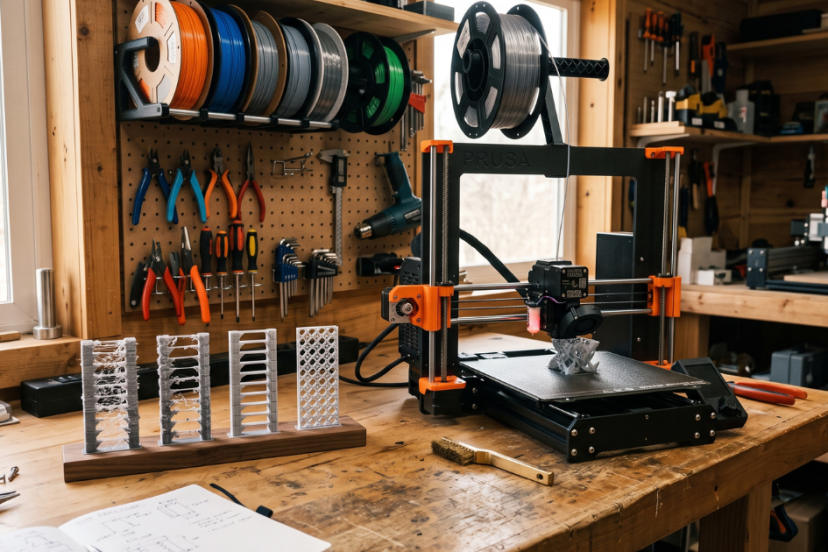
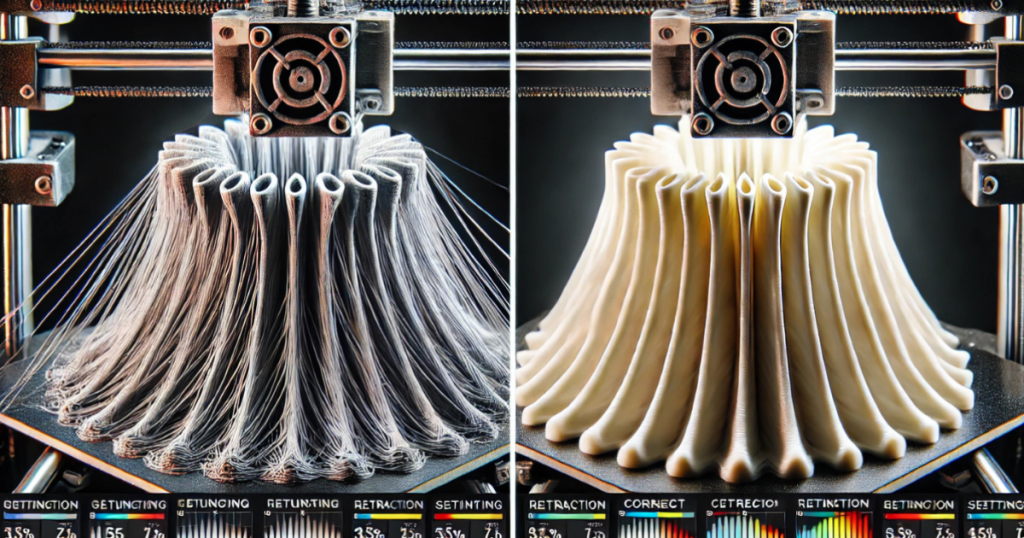
Adjusting TPU (Thermoplastic Polyurethane) retraction settings is essential for achieving high-quality prints while minimizing issues like stringing and oozing. Since TPU is a flexible filament, it requires different retraction settings compared to rigid filaments like PLA or ABS. Too much retraction can cause jams, while too little can lead to excessive stringing.
Here’s how to adjust TPU retraction settings to get the best results:
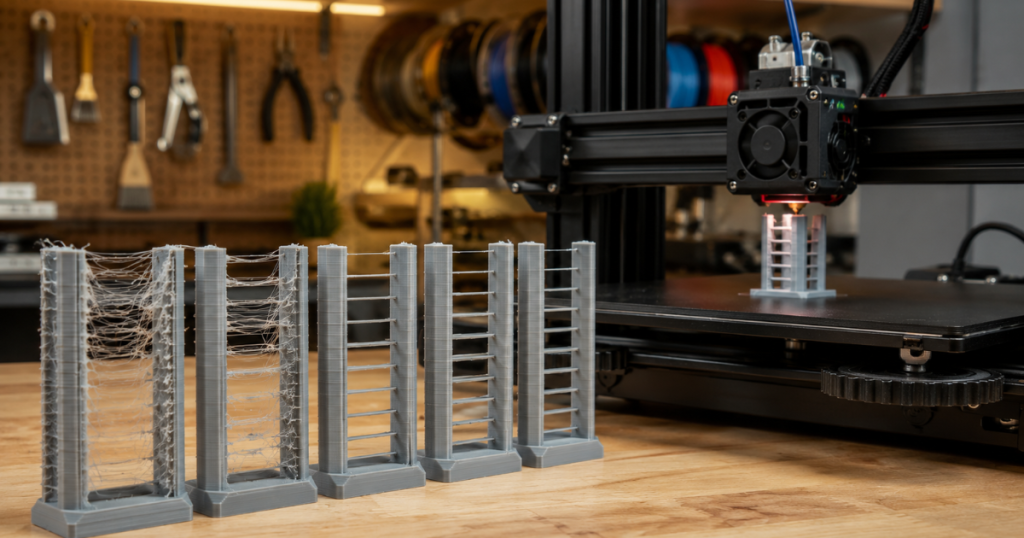
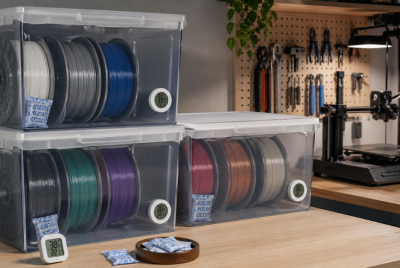
👉 Moisture can make TPU appear difficult to tune because wet filament often creates stringing that resembles poor retraction settings.
👉 Check Filament Dryer on Amazon
1. Retraction Distance
- Recommended Range: 1mm to 3mm
- Why It Helps: Since TPU is flexible, a shorter retraction distance is recommended to avoid the filament buckling or jamming in the extruder.
- How to Adjust:
- In your slicer, look for the retraction distance setting (usually under the “Extruder” or “Material” settings).
- Set the retraction distance to 1mm to 3mm. If you experience stringing, try increasing the retraction distance slightly. If you encounter jams, try reducing it.
- Tip: Start with 1mm of retraction distance and adjust based on print quality. TPU generally needs less retraction than other filaments.
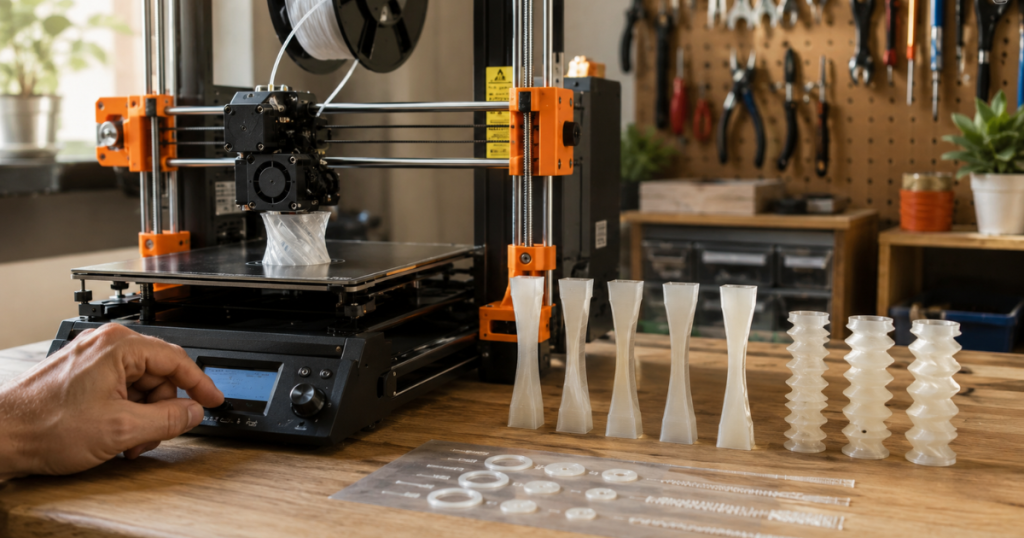
2. Retraction Speed
- Recommended Range: 20mm/s to 40mm/s
- Why It Helps: Retraction speed controls how fast the filament is pulled back into the nozzle. TPU is flexible, so a slower retraction speed is usually better to prevent clogs and jams.
- How to Adjust:
- In your slicer, look for the retraction speed setting (usually near the retraction distance).
- Set the retraction speed to 20mm/s to 40mm/s. If you notice stringing or oozing, reduce the retraction speed slightly. If you’re experiencing clogs or under-extrusion, you may need to increase the speed.
- Tip: Start at 20mm/s and gradually increase to avoid jams in the extruder.
3. Retraction Minimum Travel
- Recommended Setting: 1mm to 3mm
- Why It Helps: This setting defines the minimum distance the extruder must travel before a retraction is triggered. For TPU, you want to ensure that the extruder doesn’t retract too frequently on short travel moves.
- How to Adjust:
- Set the minimum travel distance for retraction to 1mm to 3mm. This will ensure that retraction is only triggered on significant travel moves, not every small movement.
- Tip: This setting prevents excessive retraction and helps improve print speed.
4. Enable Combing Mode
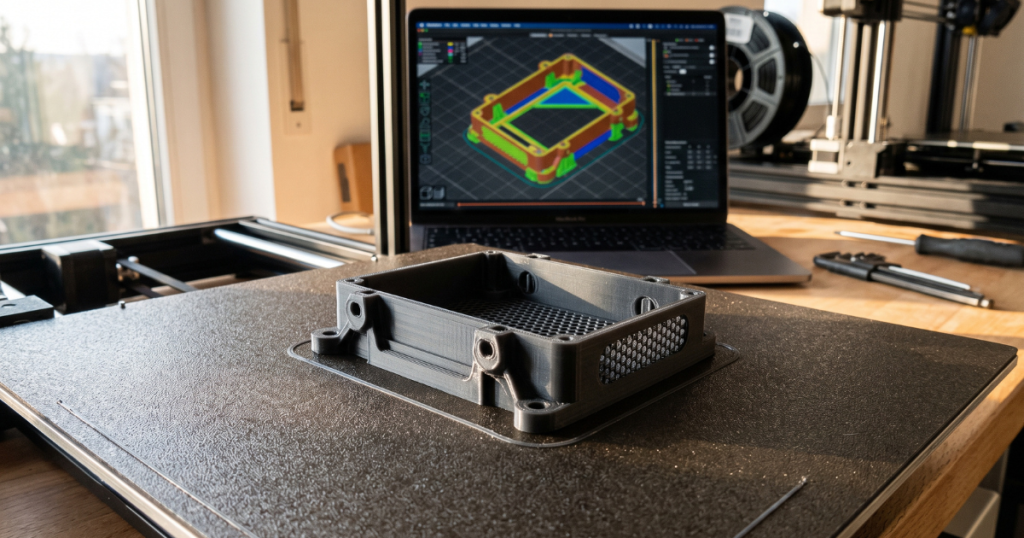
- Why It Helps: Combing mode reduces the travel of the nozzle over open spaces, which can reduce the need for frequent retractions and minimize stringing.
- How to Adjust:
- In your slicer, enable Combing Mode (often found in the “Travel” section of slicer settings).
- Set it to “Within Infill” or “Within Object”, depending on how the slicer handles travel movements.
- Benefit: Combing mode allows the extruder to travel over printed areas where there’s already filament, reducing the risk of stringing between non-adjacent parts.
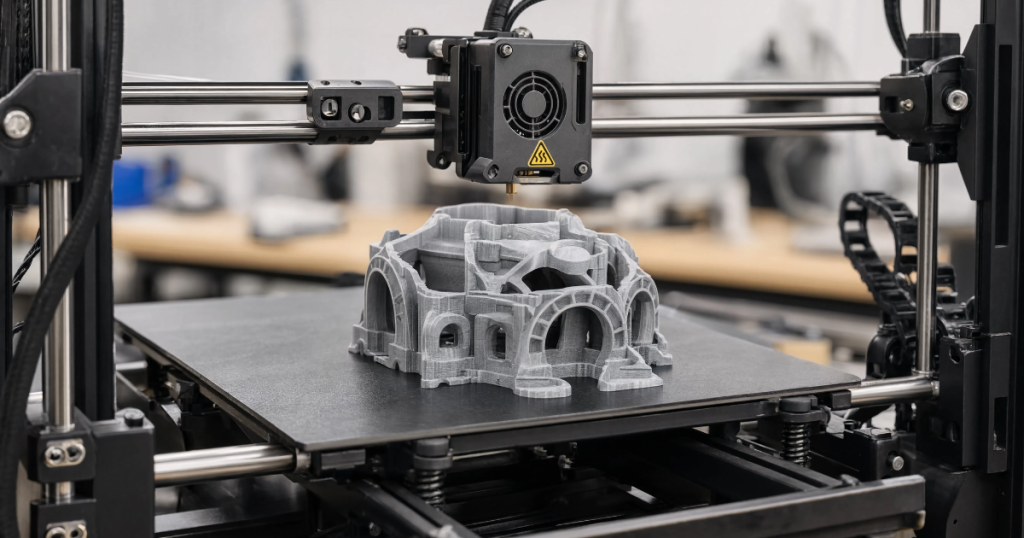
👉 Flexible filaments often print more consistently when filament movement is tightly controlled from spool to nozzle.
👉 Check Direct Drive Extruder Upgrade on Amazon
5. Z-Hop (Retraction Lift)
- Recommended Range: 0.2mm to 0.4mm
- Why It Helps: Z-hop helps lift the nozzle slightly when traveling, preventing the nozzle from dragging across the print and causing stringing or imperfections.
- How to Adjust:
- Enable Z-hop in your slicer (usually found under the “Retraction” settings).
- Set the Z-hop height to 0.2mm to 0.4mm. This will raise the nozzle just enough to clear the printed surface without affecting print quality.
- Tip: Enable Z-hop only if you’re experiencing drag marks on the print, as it can slightly increase print time.
👉 Improve TPU Retraction Performance:
Filament Dryer
Direct Drive Extruder Upgrade
TPU Filament
6. Retraction Extra Prime Amount (Optional)
- Recommended Setting: 0.1mm to 0.2mm
- Why It Helps: This setting compensates for the filament that may be lost during retraction and ensures consistent extrusion when the nozzle starts printing again.
- How to Adjust:
- In some slicers, you can enable the retraction extra prime amount to ensure the filament flows consistently after a retraction.
- Set the value to 0.1mm to 0.2mm for TPU.
- Tip: Only adjust this setting if you’re seeing under-extrusion at the start of layers after retraction.
🔧 Upgrade Your TPU Retraction Setup:
Filament Dryer
Direct Drive Extruder Upgrade
TPU Filament
Final Tips for TPU Retraction Settings:
- Start with conservative settings: Since TPU is flexible, start with lower retraction distances and speeds to avoid jams.
- Test and adjust: TPU filament can behave differently depending on the brand or printer, so do some test prints and adjust the retraction settings based on results.
- Monitor the extruder: Keep an eye on the extruder during the first few layers. If you hear grinding or see under-extrusion, adjust the retraction distance and speed accordingly.
- Dry the filament: If you experience excessive stringing or inconsistent extrusion, make sure the TPU filament is dry. Moisture in the filament can exacerbate retraction problems.
By adjusting these TPU retraction settings, you can minimize stringing, improve print quality, and reduce the risk of clogs and jams.