How can I fix TPU stringing?
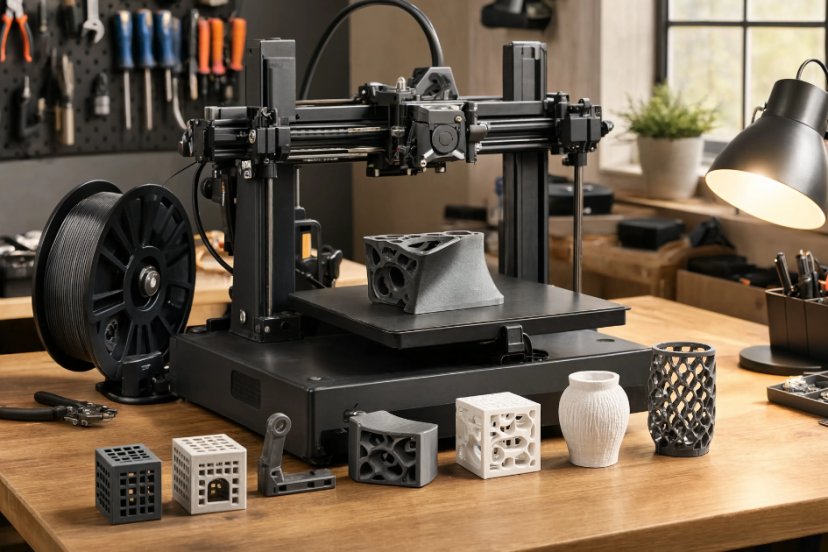
TPU (Thermoplastic Polyurethane) filament is known for its flexibility, but this can also make it prone to stringing, where unwanted threads of filament are left behind during non-printing moves. Stringing happens when excess filament oozes from the nozzle, typically during retraction or when moving between print areas. Here’s how you can fix TPU stringing:
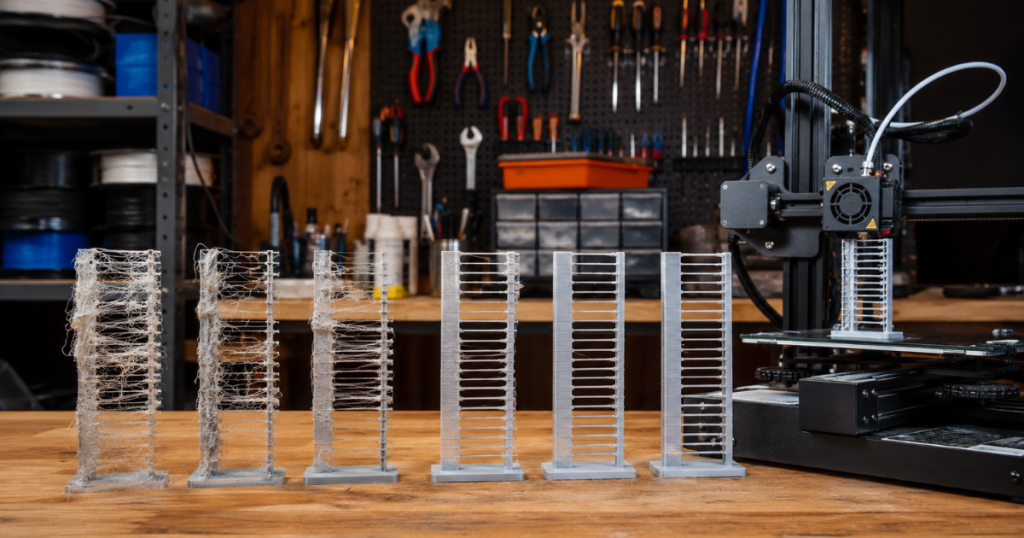
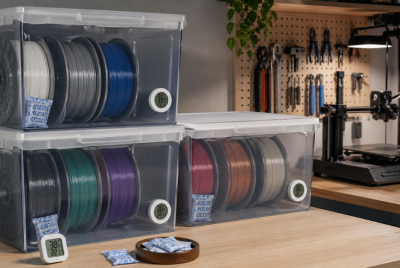
👉 TPU absorbs moisture quickly, and wet filament often creates stringing even when retraction settings are correct.
👉 Check Filament Dryer on Amazon
1. Adjust Retraction Settings
- Why It Helps: Retraction is the process of pulling the filament back into the nozzle when the extruder is moving between different areas. If retraction is set too low or too high, stringing can occur.
- How to Fix:
- Increase Retraction Distance: Try increasing the retraction distance slightly (e.g., from 2mm to 3mm) to pull more filament back into the nozzle.
- Increase Retraction Speed: Increase the retraction speed (e.g., 30-40mm/s). This helps pull the filament back faster and reduces the chances of it oozing out.
- Tip: TPU is flexible, so you may need to adjust the retraction distance more gradually, as it can be more prone to jams with too high a setting.
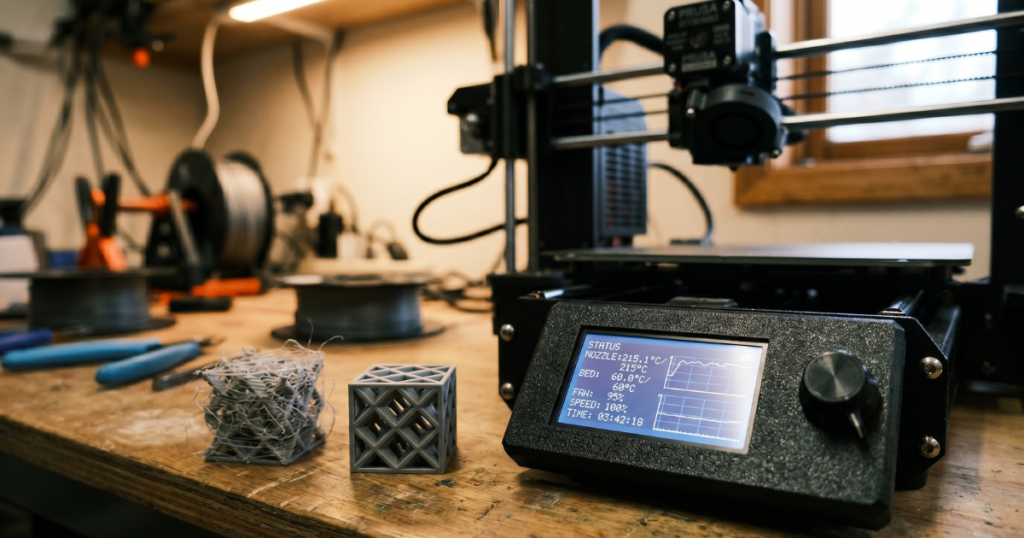
2. Lower the Print Temperature
- Why It Helps: If the print temperature is too high, the filament becomes more liquid and flows more easily, which can increase stringing.
- How to Fix:
- Lower the nozzle temperature to around 210°C to 230°C for TPU (depending on the brand and type).
- Experiment: Lower the temperature by 5°C at a time, checking for stringing and adhesion until you find the optimal temperature.
- Tip: Be cautious not to lower the temperature too much, as this can cause under-extrusion or poor layer adhesion.
3. Use “Coasting” or “Wipe Nozzle” Features
- Why It Helps: Coasting is a feature available in some slicing software that stops extruding slightly before the nozzle finishes its move. This helps to stop filament from oozing out after the extruder stops moving.
- How to Fix:
- Enable the “Coasting” option in your slicer (e.g., in Cura, it’s called “Coasting Distance”).
- Adjust the coasting distance gradually until the stringing is minimized. A value of 0.2-0.4mm typically works well for TPU.
- Tip: Use this in combination with proper retraction settings to get the best results.
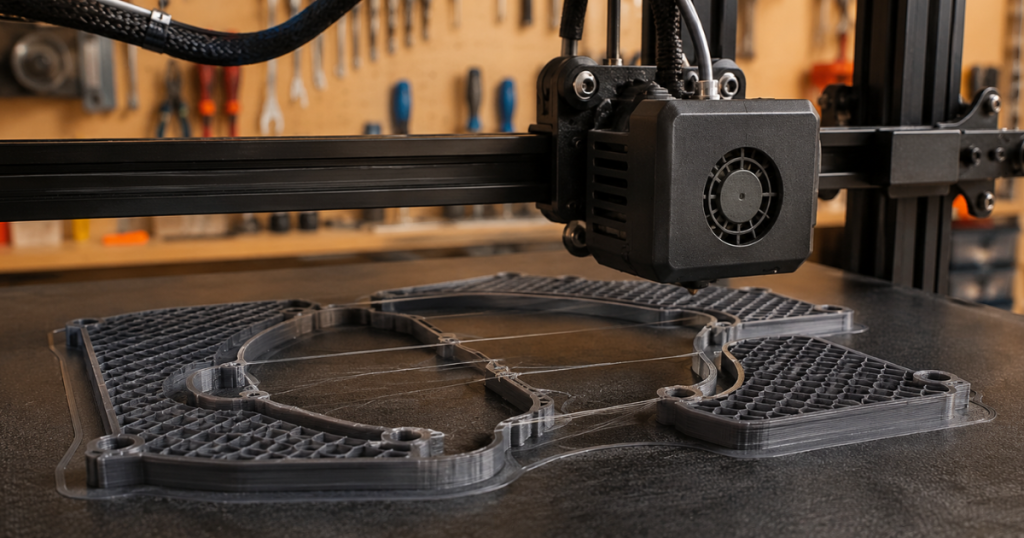
4. Optimize Travel Movements
- Why It Helps: Minimizing unnecessary travel moves and having the nozzle avoid areas where stringing is likely can reduce stringing.
- How to Fix:
- Enable “Combing Mode” in your slicer: This setting allows the nozzle to travel through areas that have already been printed, avoiding open spaces where stringing could occur.
- Minimize Travel Distance: In slicers like Cura, you can enable the “Optimize Path” setting, which reduces unnecessary travel moves that could contribute to stringing.
- Avoid Large Gaps: Try to design prints with fewer large gaps between parts to minimize the need for long, retraction-heavy movements.
5. Increase Print Speed
- Why It Helps: Printing faster reduces the time the nozzle spends moving between parts, which can reduce stringing by limiting the amount of time excess filament has to ooze out.
- How to Fix:
- Increase the print speed slightly (e.g., from 30mm/s to 40mm/s).
- Be careful not to increase it too much, as this can cause other issues like poor layer bonding or under-extrusion.
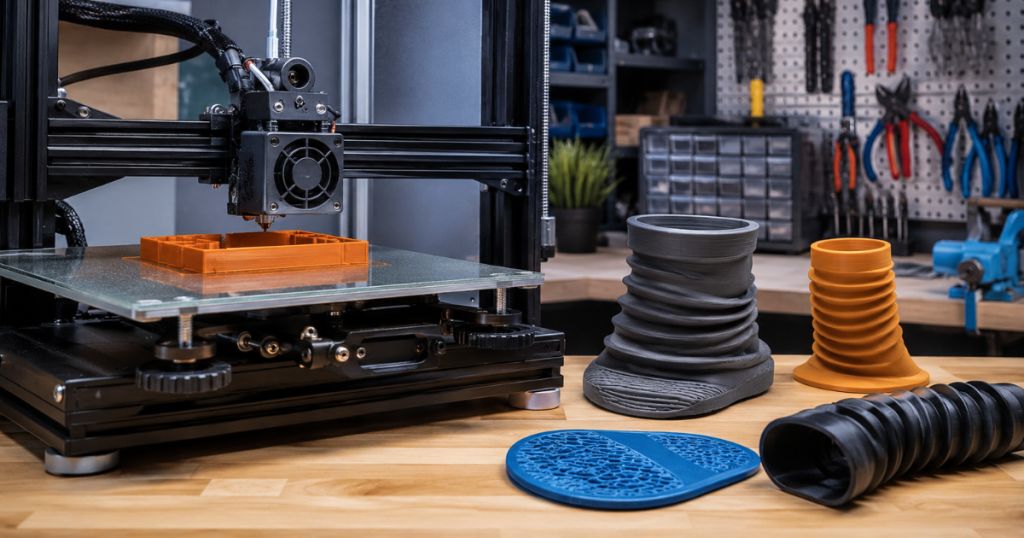
👉 Consistent TPU feeding is often easier when the filament path is short and tightly controlled.
👉 Check Direct Drive Extruder Upgrade on Amazon
6. Use the Right Cooling Settings
- Why It Helps: Cooling the filament too quickly can cause it to shrink, which may increase stringing. On the other hand, insufficient cooling can cause the filament to stay too liquid for too long, leading to excessive oozing.
- How to Fix:
- Reduce Cooling Fan Speed: Set the cooling fan to low or off for the first few layers to help with adhesion. After the first few layers, you can gradually increase the fan speed.
- Use Fans Sparingly: TPU does not require a lot of cooling, so a fan speed around 20-30% works well for most prints.
7. Try a Different TPU Brand or Type
- Why It Helps: Some TPU filaments are more prone to stringing than others, and certain types may have different flow characteristics or better retraction behavior.
- How to Fix:
- If you’ve tried the above steps and are still experiencing significant stringing, try experimenting with different TPU brands or types. Some brands offer “low-stringing” variants designed to reduce these issues.
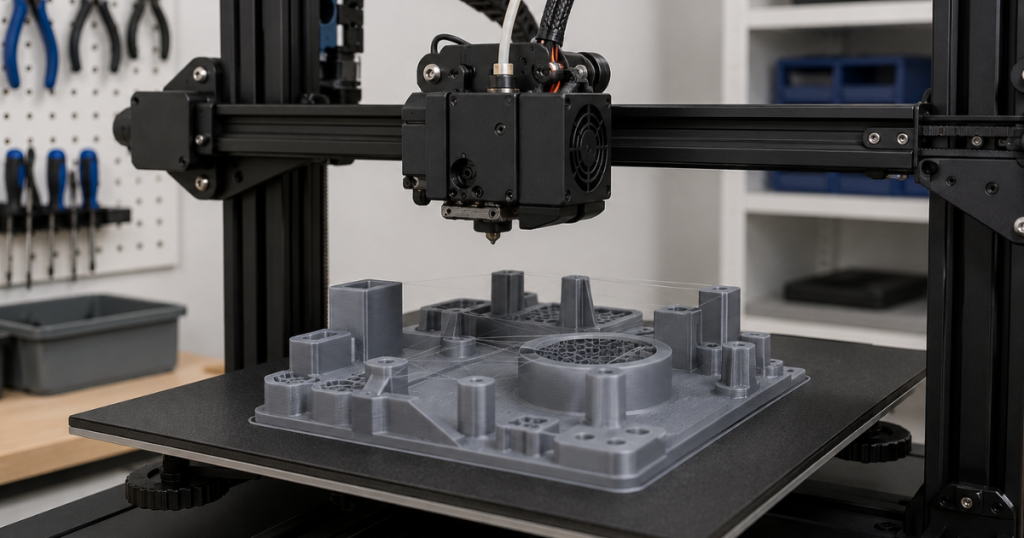
👉 Reduce TPU Stringing and Improve Flexible Prints:
Filament Dryer
Direct Drive Extruder Upgrade
TPU Filament
8. Increase the Z-Hop (Lift the Nozzle)
- Why It Helps: Z-hop (or lifting the nozzle slightly while moving between areas) can prevent the nozzle from dragging across printed areas, reducing the chance of stringing.
- How to Fix:
- Enable Z-hop in your slicer (e.g., in Cura, enable the “Enable Z-hop when retracted” option).
- Set a small Z-hop distance (typically between 0.2mm to 0.4mm) to lift the nozzle just enough to avoid touching the print.
- Tip: This can help especially when moving over printed parts to avoid dragging filament across and leaving strings.
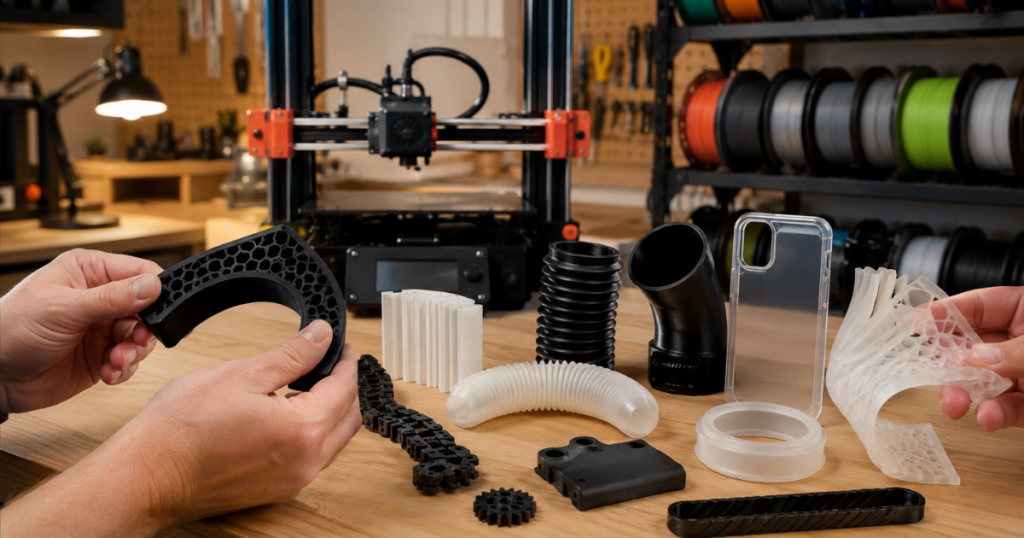
🔧 Upgrade Your TPU Printing Setup:
Filament Dryer
Direct Drive Extruder Upgrade
TPU Filament
Summary of Fixes for TPU Stringing:
- Adjust retraction settings (distance and speed).
- Lower the print temperature for better control of filament flow.
- Enable coasting or wipe nozzle features in your slicer.
- Optimize travel movements by using combing mode and minimizing travel distance.
- Increase print speed to reduce print time between movements.
- Adjust cooling settings to prevent excessive oozing.
- Try a different TPU brand if stringing persists despite adjustments.
- Enable Z-hop to reduce nozzle dragging.
By experimenting with these adjustments and combinations, you can minimize or eliminate stringing when printing with TPU, resulting in cleaner and more professional-quality prints.